Requires macOS 14 or newer, on Apple silicon or Intel. On Windows, use the Windows app.
Install
curl -fsSL https://browsentic.com/install.sh | shThe script downloads the latest release, checks that the app’s signature is intact, copies
Browsentic.app into Applications, clears the quarantine flag on that copy and opens it. It does not
ask for a password. Set BROWSENTIC_VERSION=0.6.2 to pin a release, or BROWSENTIC_NO_OPEN=1 to
install without opening. The script is sixty lines, if you want
to read it first.
From the disk image instead
Download Browsentic-<version>.dmg from the
latest release and drag Browsentic onto
Applications. The build is not notarized yet and macOS quarantines browser downloads, so the
first open is blocked with “Apple could not verify Browsentic is free of malware”. Press Done,
then either press Open Anyway on the Browsentic line in System Settings → Privacy & Security,
or run:
xattr -dr com.apple.quarantine /Applications/Browsentic.appOn macOS 15 and newer, Right-click ▸ Open no longer gets past the block. The one-line install runs
the same xattr step for you after verifying the signature.
The first screen: what your Mac already has
The app opens on five checks and runs them automatically:
| Check | Passes when | If it does not |
|---|---|---|
| This Mac | always | Nothing to do |
| Node.js runtime | node 20 or newer is on your PATH |
Install downloads the current LTS from nodejs.org into ~/.browsentic/runtime/node, verified against its published SHA-256. No Homebrew, no password |
| Browsentic Bridge | ~/.browsentic/cli holds the version this app carries |
Install copies it there, writes the browsentic launcher to ~/.browsentic/bin, and registers it with your browsers so they can start it |
| A browser | Chrome, Brave, Edge, Arc, Vivaldi, Opera, Chromium or Firefox is installed | Get Chrome opens the download page. Advisory: it does not block you |
| An AI agent | One of claude, codex, agy, vibe, grok, cursor-agent, qwen or opencode is on your PATH |
Install Claude Code runs npm i -g @anthropic-ai/claude-code. Advisory |
Set up everything installs Node and the Bridge in one click. The browser, the extension and the agent are your choice, so each has its own button. Once everything required is in place the app moves on by itself; on later launches that takes about two seconds.
Adding the extension
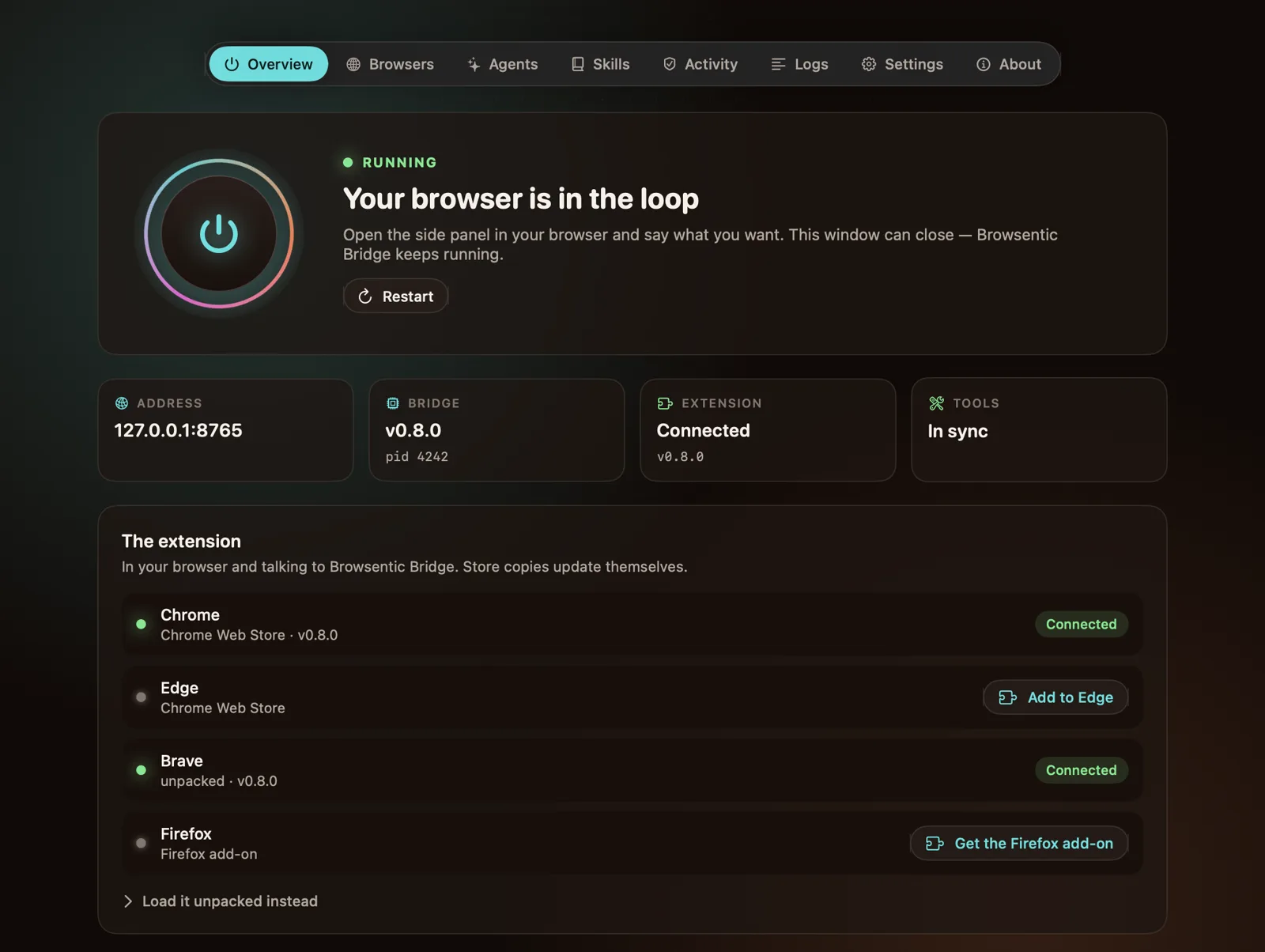
Overview has one row per browser on your Mac, showing where its extension came from and whether it is connected. A browser without the extension has a button (Add to Chrome, Add to Edge or Get the Firefox add-on) that opens the store page in that browser. Press the store's button, and the extension connects by itself; the row turns Connected. If it asks for a code, enter the one the app shows.
Load it unpacked instead, under the rows, is for a browser that cannot reach a store or for an
unreleased build. It writes the extension to ~/browsentic/extension/chrome-mv3, opens
chrome://extensions with that path on the clipboard, and shows Reload needed on that row when
the folder holds a newer build than the browser has loaded.
Why the unpacked extension is not in
~/.browsentic. Chrome’s Load unpacked dialog is the system folder picker, which hides dotfolders, and the browser derives an unpacked extension's ID from its absolute path. So the app puts it in~/browsentic/extension/chrome-mv3, where the command puts it, and everything else in~/.browsentic.
The window
The tabs float at the top; ⌘1 to ⌘5 switch between them. Agents, Skills, Activity and Logs are pages of Settings, picked from its sidebar.
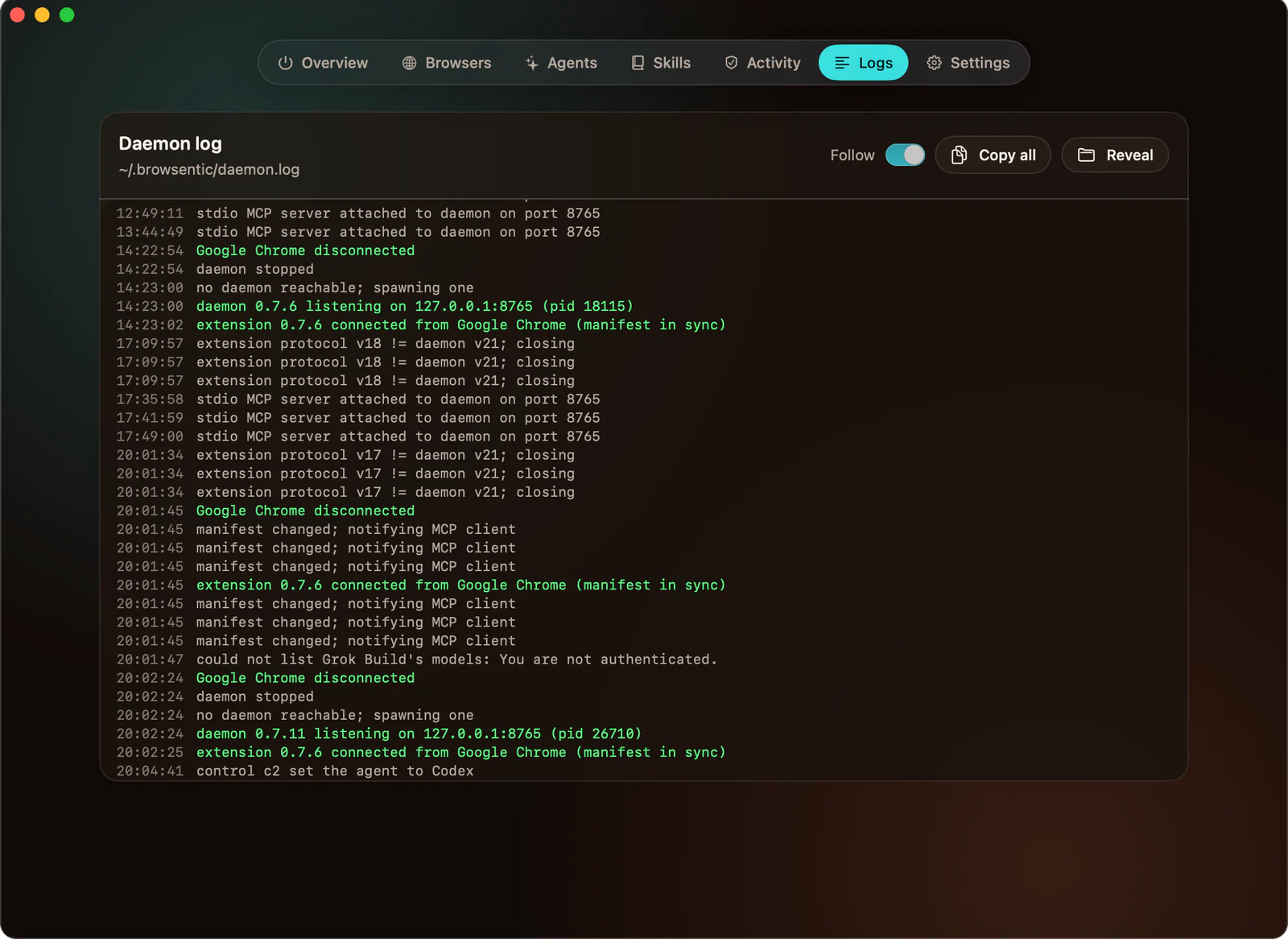
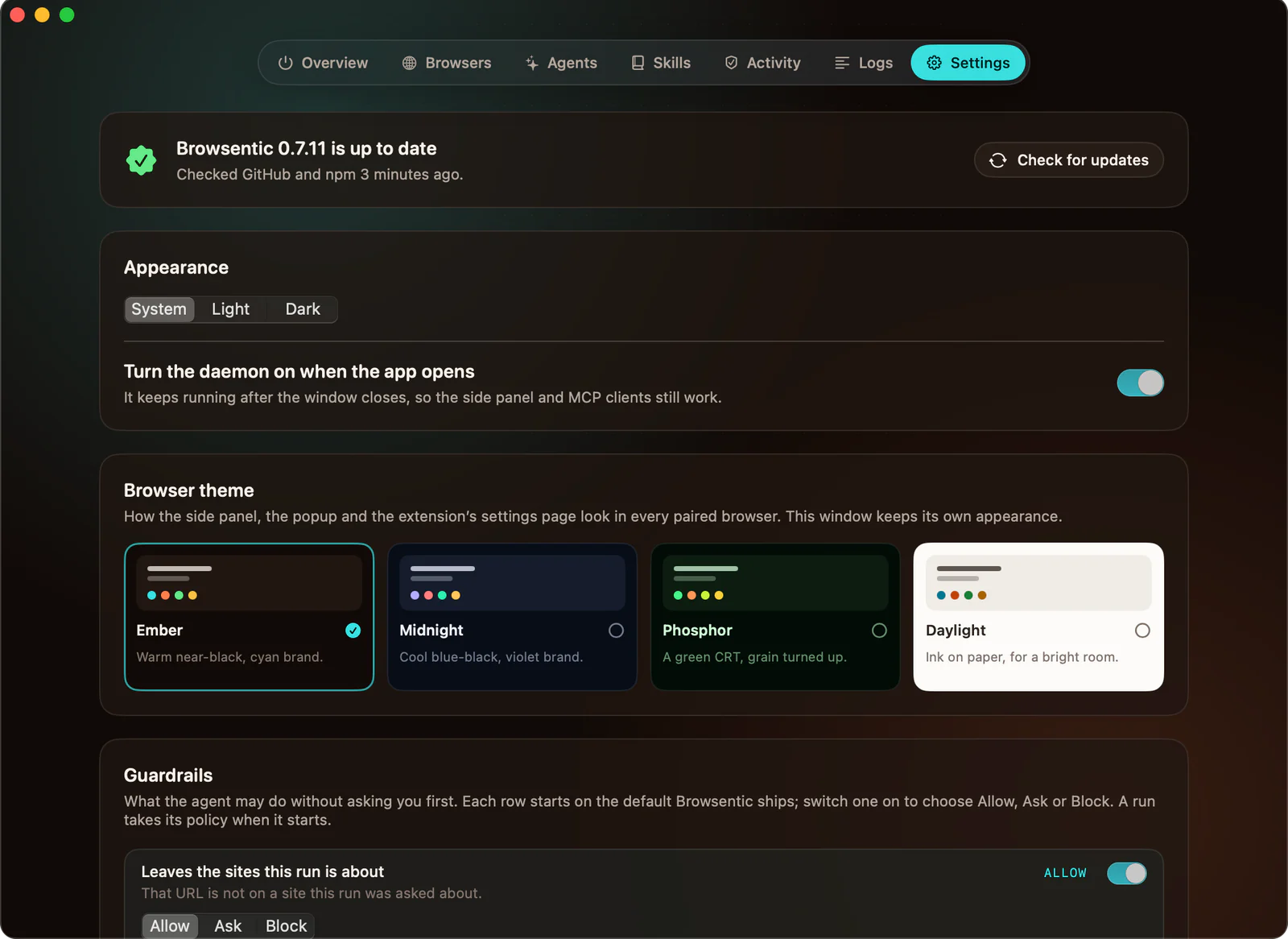
| Tab | What you do there |
|---|---|
| Overview | Turn Browsentic Bridge on and off with the power button, restart it, see its address and version. One row per browser: where its extension comes from, whether it is connected, and a button that adds it from the store. The unpacked folder sits behind Load it unpacked instead |
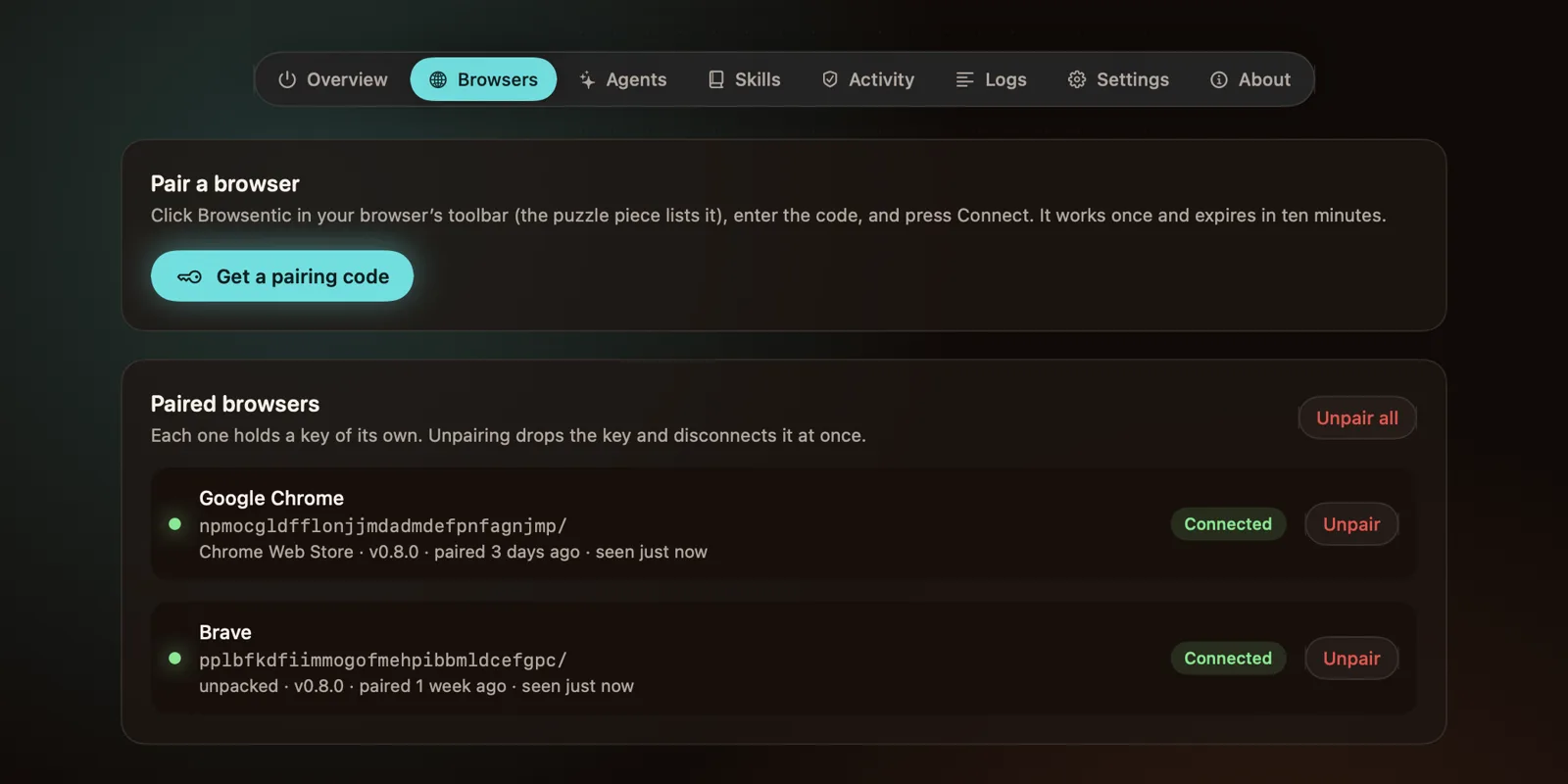
| Browsers | Get a pairing code with a live countdown, see every paired browser and the store its extension came from, unpair one or all |
| Android (experimental) | Whether a phone is ready to drive from the side panel: adb, the phone, USB debugging, Chrome, Chrome open and the screen, one row each, the same checks browsentic android prints. A row that fails says what to do, with Open Chrome on the phone, Get Chrome or the adb install command to copy. Set up your phone has the steps. The Bridge looks for phones only while this tab is open |
| Settings | Five pages, picked from its sidebar; see below |
| About | Who makes Browsentic, a GitHub star, every version on this computer with a copy button, Report a bug (GitHub's issue form with those versions filled in; nothing is sent until you submit it), and links to the guide, this page, troubleshooting and the release notes. Run the checks again reruns the first-run checks |
| Settings page | What you do there |
|---|---|
| General | Light, dark or system appearance for this window; whether the Bridge starts with the app; the Browser theme and Guardrails every paired browser uses, the same rows as the extension's settings page, kept in step both ways; browsentic in your terminal; the line that registers Browsentic with an MCP client; uninstall |
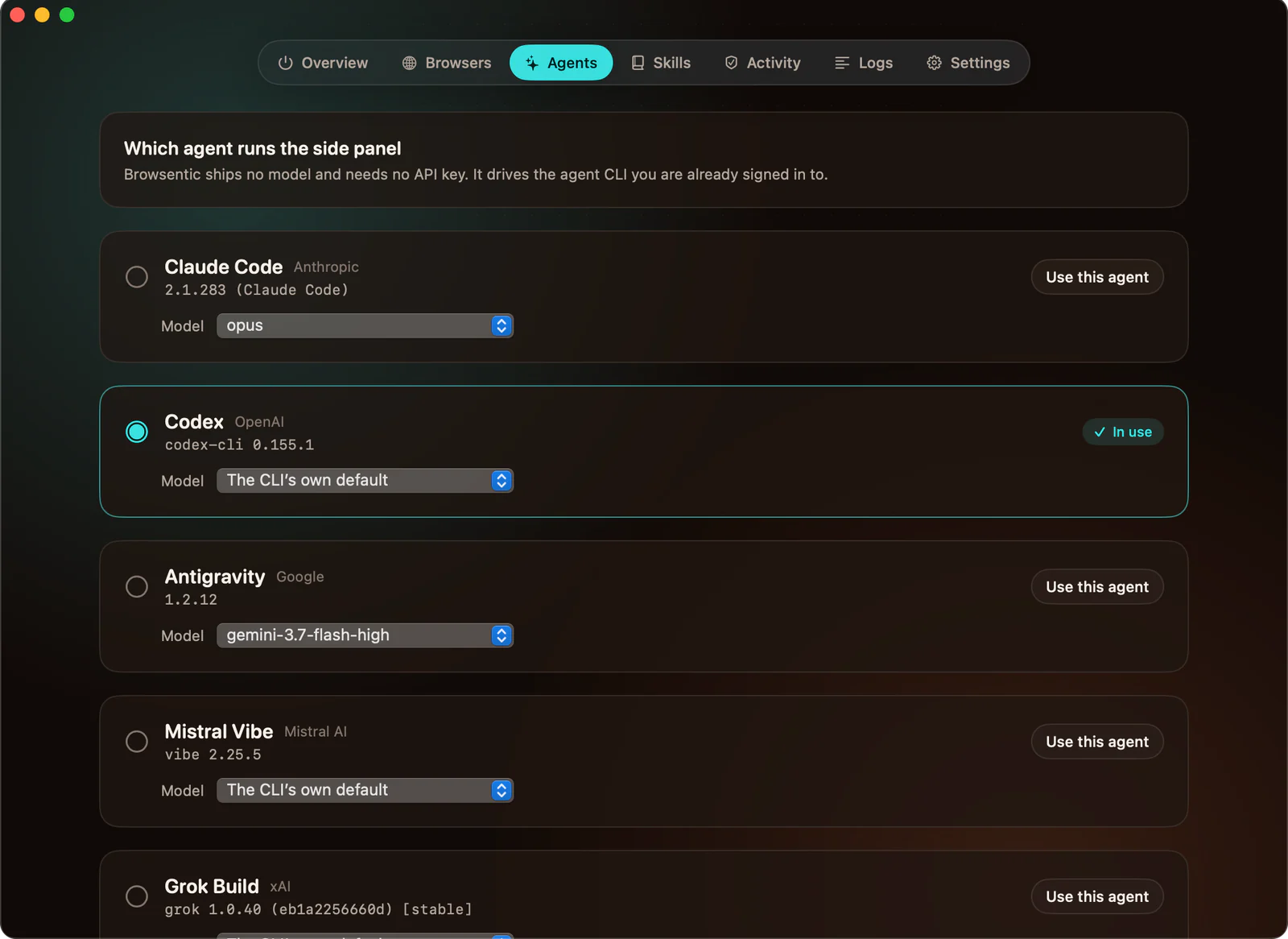
| Agents | See which agent CLIs are ready, switch between them, pick a model, install a missing one, or let Browsentic fix what one still needs |
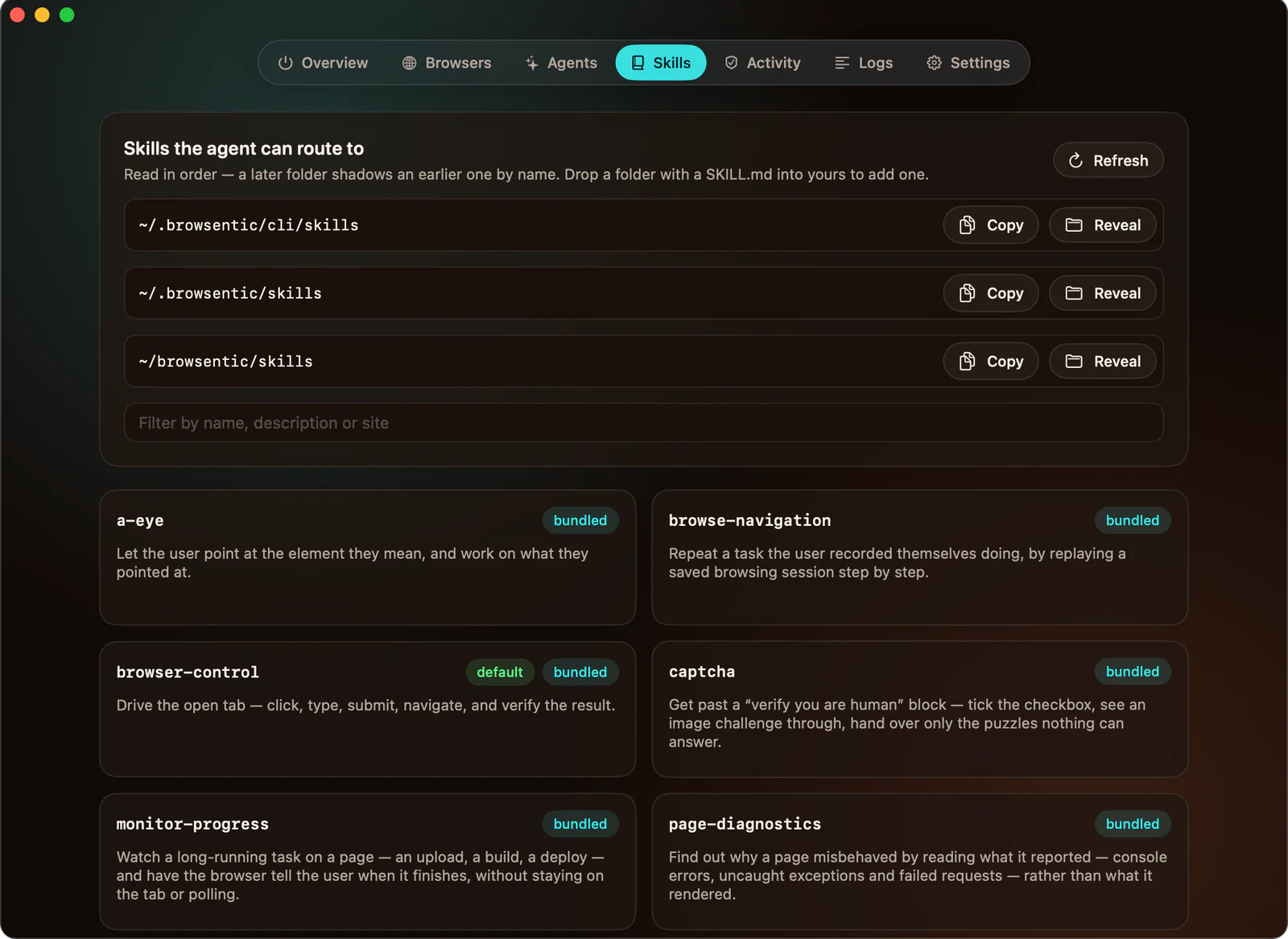
| Skills | Every skill the router can see and which folder it came from |
| Activity | Your standing approvals, forgettable per site, and the downloads agents captured |
| Logs | ~/.browsentic/daemon.log, followed live |
A menu bar item, the Browsentic mark with its centre dot filled while the Bridge runs, shows the Bridge’s state and has the same on, off and restart controls.
Closing the window does not stop anything. The Bridge is a background process of its own, so the side panel and any MCP client keep working with the app closed or quit.
browsentic in your terminal
Settings → General → “browsentic” in your terminal links the launcher into a folder that is
already on your PATH and writable: ~/.local/bin, /opt/homebrew/bin or /usr/local/bin. It
edits no shell profile and asks for no password. Every command in the
CLI reference then works against the install the app manages.
If you also installed it with npm i -g browsentic, remove that copy (npm rm -g browsentic) so
two versions cannot drift apart.
Updating
The app checks GitHub and npm for a newer release at launch and every few hours after. When one is out, a card appears at the top of Overview (and in Settings) with Update now, which downloads the release, checks its signature and that it is the version it claims to be, then replaces the app and reopens it. The new app replaces the Bridge and restarts it. Check for updates on the same card checks again immediately.
The extension downloads its updates from its store, and the side panel offers Update once one
is ready. An unpacked copy needs ↻ on its card at chrome://extensions, or Update in the side
panel, and the app tells you when. The extension and the Bridge do not have to be
the same version.
A release reaches npm a few minutes before its Mac build is attached; until then the card says so and offers Check again. If an update fails, nothing changes, and the card shows the install line, which installs the same release from a terminal.
browsentic update does not replace an install the app made; it tells you to update from the app.
Uninstall
Settings → General → Uninstall… runs browsentic uninstall:
it unpairs every browser, stops the Bridge and removes ~/.browsentic and ~/browsentic,
optionally keeping your skills. Remove the extension from each browser first (right-click its
toolbar icon → Remove), and drag the app to the Trash afterwards.
Building it yourself
yarn mac:dmg # → dist/mac/Browsentic.app and dist/mac/Browsentic-<version>.dmgThis needs the Swift toolchain (Xcode or the Command Line Tools). The source is a SwiftPM package in
src/mac/; see internals/mac-app.md.